


Opening Oracle Databases
Before trying to connect an Oracle database in Exportizer, make sure your local tnsnames.ora file contains the entry of this database. Usually, this file is located in ORACLE HOME\NETWORK\ADMIN directory. ORACLE HOME is the directory into which all Oracle software is installed; it is referenced in the application as Vendor homepath parameter (see below). Each database entry in the tnsnames.ora file has the following basic format:
database_name =
 (DESCRIPTION =
   (ADDRESS_LIST =
     (ADDRESS = (PROTOCOL = TCP)(Host = hostname)(Port = port))
   )
 (CONNECT_DATA =
   (SERVICE_NAME = service_name)
 )
)hostname, port, service_name are attributes of your Oracle database. If you don't know them, ask your database administrator.
database_name is a custom name for the database entry; you use it in Exportizer and other database applications.
Here is an example of a database entry in the tnsnames.ora:
main_db =
 (DESCRIPTION =
   (ADDRESS_LIST =
     (ADDRESS = (PROTOCOL = TCP)(Host = 192.168.100.100)(Port = 1521))
   )
 (CONNECT_DATA =
   (SERVICE_NAME = DWH_MAIN)
 )
)
The file may contain multiple database entries. Try to put each entry on a separate line. No other separators are required. To learn more about tnsnames.ora file, please read Oracle documentation.
So, you can connect to Oracle databases in Exportizer using these ways:
- Opening through FD interface. Select FD interface, click Oracle, then fill all needed database parameters. Consult with your database administrator on how to choose correct parameters.
Example of configuring a database connection:
(highlighted are required parameters)
Parameter Description Value example Vendor homepath The root folder of the Oracle client installation C:\app\product\12.1.0\client_1 Database Name of the database from tnsnames.ora file main_db OS authentication Specify whether to use OS authentication instead of the db authentication No Authentication mode Oracle authentication mode: - Normal
- SysDBA
- SysOper
- SysASM
- SysBackup
- SysDG
- SysKM
Normal Charset The character set for the connection WE8MSWIN1252 Application name Application name to show in database sessions Exportizer Enterprise User name Database user name dexter Password Database user password ******** SQL command separator Command separator in multi-command SQL scripts <sqlplus> - Opening through ODBC DSN. Create (if it does not exist yet) an ODBC DSN of the corresponding type using Windows ODBC Data Source Administrator, and point it to your database. Then select ADO or BDE interface, choose ODBC data source option and then select the needed ODBC DSN from the drop-down list.
- Opening through connection string (interface: ADO). Select Connection string option and write a connection string. Connection string provides a flexible way to open the database because it can include different set of parameters. This way is recommended for advanced users but in most cases connection strings are enough simple even for beginners. Here are basic connection strings (more examples and details can be found in the Internet):
Provider=msdaora;Data Source=MyOracleDB;User Id=myUsername;Password=myPassword; (Microsoft OLE DB Provider for Oracle must be installed)
Provider=OraOLEDB.Oracle;Data Source=MyOracleDB;User Id=myUsername;Password=myPassword; (Oracle Provider for OLE DB must be installed)
Driver={Microsoft ODBC Driver for Oracle};ConnectString=OracleServer.world;Uid=myUsername;Pwd=myPassword; (Microsoft ODBC Driver for Oracle must be installed)
Provider=MSDASQL.1;Extended Properties="DSN=ORACLE_DB;UID=MyUsername;PWD=MyPassword"
Attention
- This database type is supported only in Exportizer Enterprise and Exportizer Pro (the latter one can open such databases via ODBC only).
- Oracle client must be installed. The bit-version of it (32 or 64) must match the bit-version of the application.
- When choosing the ODBC option, please make sure the corresponding ODBC driver installed and the bit-version of it matches the bit-version of the application (32 or 64).
Notes
- Each Exportizer edition has both 32-bit and 64-bit versions. You can install both and use them depending on what type of database you need to work with.
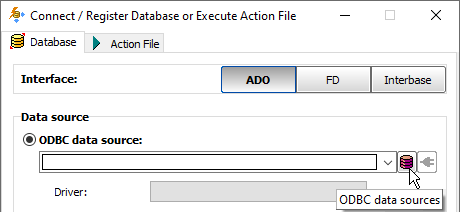
- You can invoke the ODBC Data Source Administrator directly from Exportizer when it was launched in administrator mode:
See also