


Opening Paradox Files (.db)
You can open Paradox files (.db) in Exportizer using these ways:
- Opening through ODBC DSN. Create (if it does not exist yet) an ODBC DSN of the corresponding type using Windows ODBC Data Source Administrator, and point it to the folder with .db files. Then select ADO or BDE interface, choose ODBC data source option and then select the needed ODBC DSN from the drop-down list.
- Opening by specifying file name (interface: ADO or BDE). Select File option and then browse for the needed file.
- Opening by specifying folder name (interface: ADO or BDE). Select Folder option, select a driver from the drop-down list, and then browse for the folder with .db files.
- Opening through connection string (interface: ADO). Select Connection string option and write a connection string. Connection string provides a flexible way to open the database because it can include different set of parameters. This way is recommended for advanced users but in most cases connection strings are enough simple even for beginners. Here are basic connection strings (more examples and details can be found in the Internet):
Provider=Microsoft.Jet.OLEDB.4.0;Paradox 4.X;DATABASE=C:\MyParadoxFolder;
Provider=MSDASQL.1;Extended Properties="DefaultDir=C:\MyParadoxFolder;Driver={Microsoft Paradox Driver (*.db )};DriverId=26;"
Provider=Microsoft.ACE.OLEDB.12.0;Data Source=c:\MyParadoxFolder;Extended Properties=dBASE IV; (Microsoft ACE must be installed)
Attention
- Recommended interface for this data source type is BDE.
- When choosing the ODBC option, please make sure the corresponding ODBC driver installed and the bit-version of it matches the bit-version of the application (32 or 64).
Notes
- Each Exportizer edition has both 32-bit and 64-bit versions. You can install both and use them depending on what type of database you need to work with.
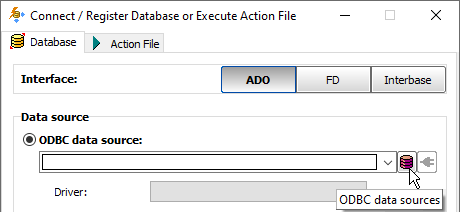
- You can invoke the ODBC Data Source Administrator directly from Exportizer when it was launched in administrator mode:
See also