SQL Query Tool
Build and execute your own SQL queries in Pro or Enterprise. (➔ Upgrade)
SQL queries give you ability to:
- View only needed table fields / columns.
- Use expressions as fields.
- Combine data from several tables using joins, unions etc.
- View only records that meet user specified criteria.
- Use parameters and macros. SQL query parameters and macros allow reusing the same SQL text to produce different criteria.
If you are new to SQL, start from something like this:
SELECT *
FROM <table_name>
WHERE <column_name1> = ... AND <column_name2> = ...
Here, <table_name> is the name of the table to get data from, and <column_name1> and <column_name2> are the names of columns in that table. The asterisk tells the application to select data from all columns of the table.
You can use SQL queries either in Exportizer GUI or in action files and command line.
SQL Editor
The SQL editor is a part of SQL Window. To open such a window, click New SQL Window button  or right-click the needed table and choose Query Data... from the context menu. You can open multiple SQL windows and switch between them as tabs. The editor supports SQL syntax highlighting, some token hints and code auto-completion. The font and syntax highlighting can be configured.
There are a lot of functions helping you to write and execute the queries. They are available in Query menu and on the tool bar above the editor.
There is an ability to load SQL text from file and save it to file.
After disconnecting from the database, all open SQL windows will be stored in the workspace file and will be loaded after next connecting to that database (if the corresponding option is set).

Supported Types of SQL Commands
Exportizer allows to execute not only SELECT queries, but SQL commands of all other types, supported by the connected database, for example:
- Other DML queries like INSERT, UPDATE, DELETE, MERGE;
- DDL commands for creating or altering tables, views, stored procedures etc.;
- Commands to manage user permissions;
- Other types of commands, supported by your database.
Note: SQL commands are executed either by your selected database engine (e.g. ADO) or by the database server (if the current database is a server database like Oracle, SQL Server, MySQL etc.). Please refer to your database documentation for details of specific SQL commands and their syntax.
Executing Query
To execute an SQL command, type or load its text in the SQL editor and then click Execute Query button or select the corresponding item from Query menu. After successful execution, if your query is of SELECT type, its result will be shown in the data grid below.
Note: if the SQL editor contains selected text, only selected query will be executed.
You can work with the SELECT query results in the same way as you do with tables, including exporting or copying data etc.
It is also possible to execute multi-command scripts here. Make sure you correctly separate the commands in the script; in most databases, semicolon is used to separate them.
Executing multi-command SQL script:

See some statistical information for executed queries or scripts on the Statistics page.


For scripts, statistics for every command is available at the bottom. Double-click the row number to the left of the lower part to quickly switch to the corresponding line of your SQL code.
See the server output for Oracle and PostgreSQL databases on the Output page (if the corresponding database option is set).
Note: Exportizer executes SQL commands in auto-commit mode.
Queries with Parameters and Macros
Parameters and macros are substitution variables in queries. They improve flexibility of query execution by allowing to change the query dynamically (without changing of SQL text) before the execution. These variables get their values immediately before query execution either by user input or command line parameters.
Macros are always text variables; their values just replace macro names in the SQL text before query execution.
Unlike macros, parameters have type; their values and types are passed to database server or database engine and not inserted in SQL text.
Macros and parameters inside comments or string literals are ignored by the application SQL engine, but it is not recommended to use parameters there. Although macros are often more convenient to use, using parameters is more preferable as they help in performance optimization and protecting against SQL injection.
If parameter or macro is not predefined one and its value was not defined in command line, you will be prompted to enter it in a separate window.
Macros
Macros begin with << and end with >>. Use macros mainly for substitution when executing queries via command line. In the following SQL example, there is a CUST_TYPE_LIST macro:
SELECT *
FROM payments
WHERE customer_type in (<<CUST_TYPE_LIST>>)
The value for this macro can be, for example, the following string:
3, 8, 12, 5
To produce such result using parameters, the query must be more complex.
Parameters
Parameters begin with colon. Parameters, which contain spaces, must be enclosed in single quotes. Parameterized queries are convenient for using the same SQL statement for many data values. In the next SQL example, there is a DATE_OF_PAYMENT parameter:
SELECT *
FROM payments
WHERE pay_date = :DATE_OF_PAYMENT
When the application executes such a query, it suggests user to enter parameter value and data type, and then continues execution using values and types from the user input.
There are several predefined parameters, which are filled automatically by the application and do not require user or command line input:
| <<SYSTEM_DATE>> | Replaced by current date (with Date type) |
| <<SYSTEM_DATETIME>> | Replaced by current date and time (with DateTime type) |
| <<SYSTEM_TIME>> | Replaced by current time (with DateTime type) |
| <<SYSTEM_YEAR>> | Replaced by current year (with Integer type) |
| <<SYSTEM_MONTH>> | Replaced by current month (with Integer type) |
| <<SYSTEM_DAY>> | Replaced by current day (with Integer Type) |
If the predefined parameters do not begin with colon, they are interpreted as predefined macros. In case of integer data, the result will be the same, but in case of other data types there may be problems, therefore do not confuse parameters and macros.
Clickable objects
Press and hold Ctrl and move the mouse over the SQL text at the same time. If the word under the mouse is recognized as a special object which can be processed by the application in the current context, it becomes a hyperlink. Click the link to perform a certain action depending on the object type:
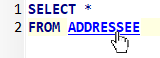
- if the word is a a name of a database object (table, view, stored procedure and several others), the Database Tour opens it in a separate window;
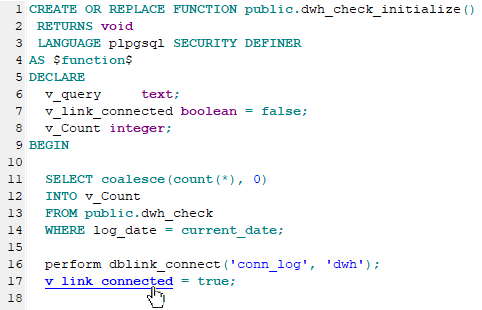
- if you are editing a stored procedure or anonymous block, and the clicked word is a name of a parameter or variable, you will be moved to the parameter/variable definition, which is especially convenient when viewing or editing large code;
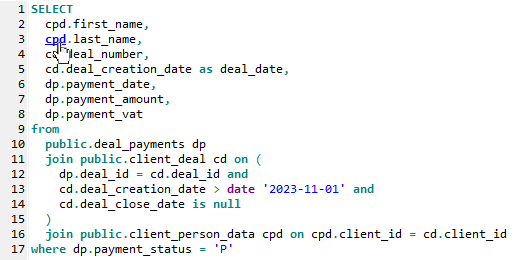
- if the word is a SQL alias of a database table, you will be moved to the place, where the table is specified in the code; it is useful when your SQL command is large or complicated.
SQL token hints
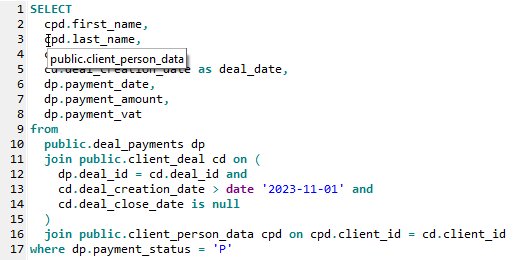
Slightly move the mouse over the SQL text to show you some info about the token under the mouse, for example, when the token is a table alias or stored procedure variable.
Stored procedure variable hint shows the type and default value of the variable:
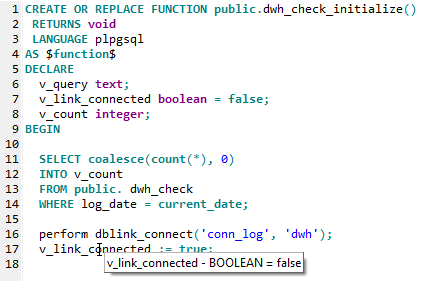
Table alias hint shows the full name of the used database table: