


Database Export Format
Migrate data to a relational database (currently opened or external), for example, dBase, SQLite, Interbase, PostgreSQL, SQL Server etc.
Notes
- This format is available only in Enterprise and (partially) Pro; the latter one can export only to ODBC data sources. (➔ Upgrade to Enterprise)
- This format involves exporting, migrating or converting data and/or structures for that data. Regardless of the type of source data object(s) like regular tables, views, external tables etc., the output object(s) will be regular table(s). For example, exporting data from a database view will export the view data to a regular table; this will not create or modify a view on the target side.
You can export data to databases either from Exportizer GUI or from the command line.
When exporting data from GUI, switch to Database page of the Export dialog. If this page is not visible, click Favorite Export Formats button in the top-right corner of the window and make sure the corresponding format is selected.
Specifying export settings when exporting data to Database:
Classic Interface
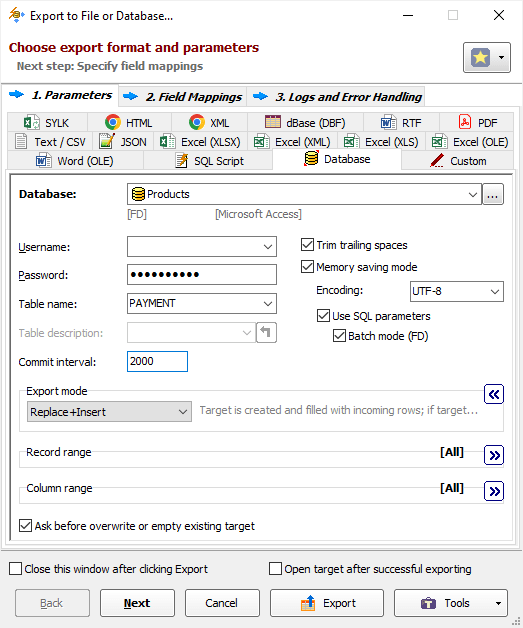
Grid Interface
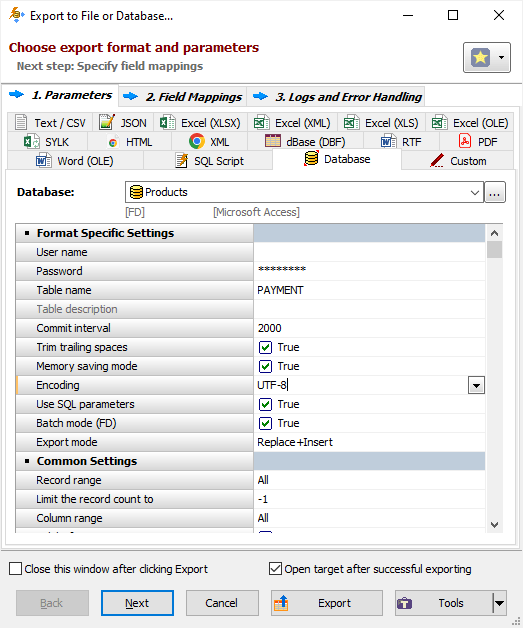
Format Specific Options
Database - a database to export data to. Select a registered database from the drop-down list or click '...' button to the right and register the new database.
User name - user name to connect target database (can be left blank, in this case application may ask it automatically when trying to connect the target database). Command line equivalent: /TrgDBUserName.
Password - password to connect target database (can be left blank, in this case application may ask it automatically when trying to connect the target database). Command line equivalent: /TrgDBPassword.
Table name - target table name. Command line equivalent: /TrgTableName.
Table description - table description to be applied to the target table; currently, it applies to Oracle, SQL Server, PostgreSQL, and MySQL databases, and only to table, which is created during the export operation. If you specify <copy_from_source>, the application will use the description of the source table (if any) extracting it during the exporting, but it requires more time to process. When exporting one table, you can extract the source description (if any) using Copy from Source button. Command line equivalent: /TrgTableDescription.
Commit interval - number of source records that should be exported before the transaction in target database is committed; if 0 is specified, commit is done after exporting all records. This option is ignored if target database does not support transactions. Note: The bigger this value, the faster is exporting process; but too large value can cause problems on unstable network or cause the process to stop due to lack of memory on server side, so try to find the balanced value. Command line equivalent: /CommitInterval.
Trim trailing spaces - trim trailing spaces and control characters in target. Applicable for char and varchar data only. Using this option allows to remove useless data and thus reduce the output volume. Command line equivalent: /TrimTrailingSpaces.
Memory saving mode - use memory saving mode. This mode is especially useful when the source or target tables have large number of records. It internally creates and executes series of SQL statements instead of opening the target dataset. In addition to memory saving, the improvements in performance can be achieved. It is recommended to use all sub-options for the best performance. Note: This mode may work differently for different target database types/interfaces, therefore it is recommended to test it carefully before using on production systems. Command line equivalent: /MemorySaving.
Encoding - SQL stream encoding for memory saving mode. For example, if your data and/or field/column names contain Unicode characters, choose UTF-8 encoding etc. Command line equivalent: /Encoding.
Use SQL parameters - use SQL parameters in memory saving mode. Using parameterized SQL queries can significantly speed up the process and allows to export BLOB data for most database types/interfaces. Note: If your exporting process fails with error message mentioning data size or data type, try to turn this option off and report this problem to the support team. Command line equivalent: /UseSQLParameters.
Batch mode - use batch mode (for FD connections only, which are available in Exportizer Enterprise). Batch mode reduces the target database workload and increases the speed of export drastically. The size of a batch equals to Commit interval value. Note: The record level logging may work differently in this mode. Command line equivalent: /UseBatchMode.
Create target schema - create target schema if it does not exist yet. Currently, it applies to PostgreSQL, SQL Server, DB2, and MySQL databases. The schema is created under the current user privileges, no AUTHORIZATION SQL clause is used (when applicable). Command line equivalent: /CreateTargetSchema.
SQL before - SQL code to execute before the start of the exporting.
SQL after - SQL code to execute after the end of the exporting.
Key fields (moved to Field mappings section) are used to match records for UPDATE, APPEND+UPDATE, or DELETE export modes. This must be a name of a source field or a comma-separated list of several source field names. In Field mappings section, the key fields must be present in the mappings list. Command line equivalent: /KeyFields.
Export Mode
|
REPLACE+INSERT Overwrites existing tables or creates new ones to populate incoming rows. |
|
CREATE_OR_REPLACE Overwrites existing tables or creates new ones using the specified structure, without data. |
|
APPEND Appends incoming rows to the existing or a newly created target table. Notes |
|
EMPTY+INSERT Empties target table before inserting incoming rows or inserts data into a newly crated target table. Notes |
|
UPDATE Updates matching (by key fields) records in the target table. Notes |
|
APPEND+UPDATE Updates matching (by key fields) records in the target table and appends (inserts) not matching records. Notes |
|
DELETE Deletes matching (by key fields) records in the target table. Notes |
Note: For multi-table exporting, the value can be overridden for each individual table-to-table pair in Table Mappings section.
Command line equivalent: /ExportMode.
Record Range
Range of source records to be exported:
- Full table - all records are exported.
- Selected records only - only selected records are exported. To select rows, click the corresponding button and then select needed rows using Shift, Ctrl and arrow keys.
- From current record to the last one - all data between current and the last records are exported.
Limit the record count to - maximum number of records to be exported. If this option is not specified or it is less then 1, all records from the specified record range will be exported. If you just want to create an empty table without data exporting, use the corresponding Export mode instead. Command line equivalent: /LimitRecordCount.
Column Range
Range of source columns to be exported:
- All columns - all columns (including columns, which were temporary hidden by user) are exported.
- Selected column only - only selected (current) column is exported.
- Visible columns - only visible columns are exported.
Other Options
Ask before overwrite or empty existing target - ask the user to overwrite existing target for REPLACE+INSERT and CREATE_OR_REPLACE export modes. Reverse command line equivalent: /SuppressOverwriteOrDeletePrompt.
See also