


Creating Database Tables
Creating Tables Using Specialized Interface
To create a table in an open database, use Tools | Create Table... menu or click Create table button  .
.
Defining Table Fields / Columns
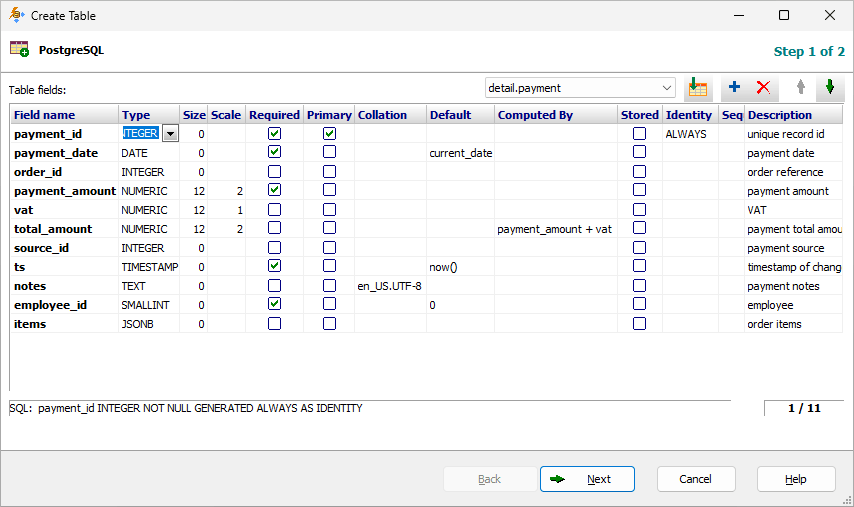
First, you define the table field/column structure of the table.
It is possible to import the structure of an existing table from the open database and work with it as a template.
Depending on your DBMS type and version, there can be different column types and attributes available. Here is how it looks for PostgreSQL database, for example:
Defining Table Attributes
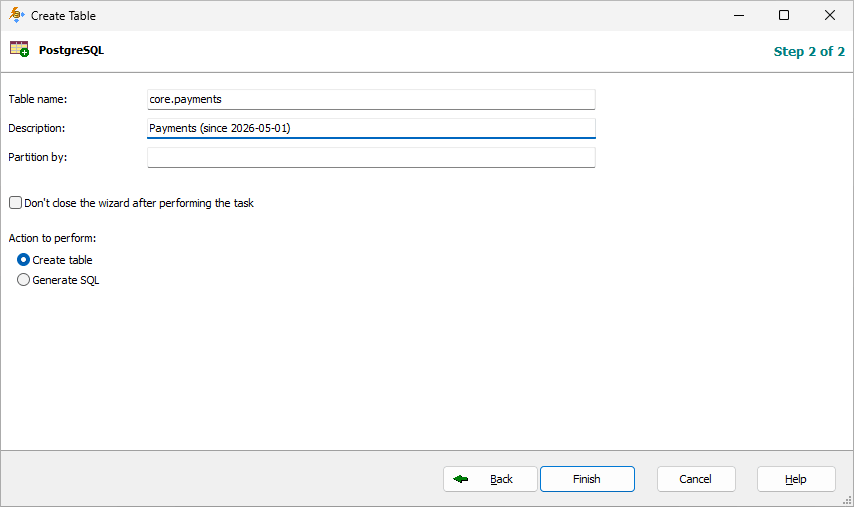
Then, you specify the table attributes like table name, its description (if your database supports it) etc. If the table must be a partitioned table, it is possible to specify by which columns partitions will be created. In Pro and Enterprise, instead of creating the tables, you can generate the corresponding SQL code.
Other Ways to Create Tables
In Pro and Enterprise, you have two additional ways of creating database tables:
- Using SQL. Click New SQL Window button and type needed DDL code. For example:
CREATE TABLE ORDERS (
  ID INTEGER NOT NULL,
  ORDER_DATE DATE NOT NULL,
  ORDER_SUM MONEY NOT NULL,
  ORDER_VAT MONEY,
  PRIMARY KEY (ID)
);
Note: Databases of different types have different CREATE TABLE syntax. Read your database documentation to learn more.
- By exporting data to a new table in that database utilizing Database or other appropriate export formats. For example:
- If you export the source dataset to dBase format, the result will be a dBase file/table in a target folder.
- If you export the source dataset to CSV format, the result will be a CSV file/table in a target folder.
- If you export the source dataset to a SQLite database, the result will be a SQLite table in that database.
At the field mappings step of exporting, you can define the needed structure of the target table.
In Standard edition, you can create tables by exporting data using Text/CSV, dBase and some other export formats, but you cannot use the Database export format due to the edition limitations. (➔ Upgrade)
See also